> ## Documentation Index
> Fetch the complete documentation index at: https://arize-ax.mintlify.site/docs/llms.txt
> Use this file to discover all available pages before exploring further.
# Trace and Evaluate an Agent Built with the OpenAI Agents SDK
> Build, trace, and evaluate an agent with the OpenAI Agents SDK and Arize AX, in Python or TypeScript.
The OpenAI Agents SDK handles the agent loop, tool calls, and handoffs for you, and its OpenInference instrumentor traces all of it automatically. This guide builds a small math-solving agent, traces its activity in Arize AX, then benchmarks it with a dataset and an LLM-as-a-judge experiment.
You'll go through the following steps:
* Create an agent using the OpenAI Agents SDK
* Trace the agent activity
* Create a dataset to benchmark performance
* Run an experiment to evaluate agent performance using LLM as a judge
The build and tracing steps are shown in both Python and TypeScript. The dataset and experiment steps use the Arize Python SDK.
**Building without the Agents SDK?** If you assemble the agent loop yourself on the plain OpenAI SDK, see [Trace an Agent Built with the OpenAI SDK](/docs/ax/cookbooks/instrument/openai-sdk-guide), which covers the manual spans you add to make that loop observable.
## Get your Arize credentials
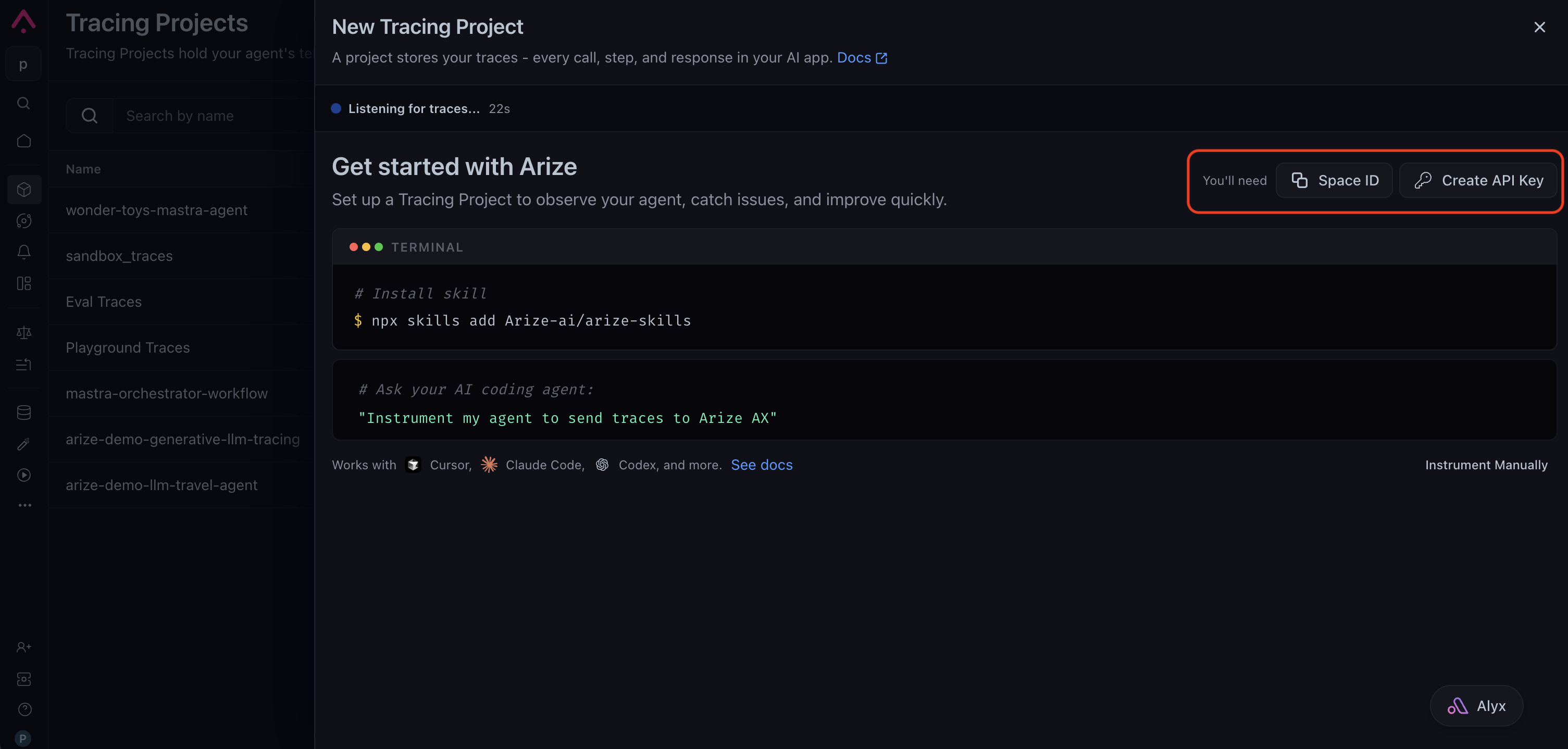
Create a tracing project from **Projects → New Tracing Project**. The setup page shows the credentials you need: copy your **Space ID** and click **Create API Key** to generate a key. Save the key somewhere safe. You'll also need an OpenAI API key. You'll plug all of these into the steps below.
 ## Initial setup
```bash theme={null}
pip install -q \
arize-otel \
openinference-instrumentation-openai-agents \
openinference-instrumentation-openai \
arize-phoenix-evals \
"arize[Datasets]"
pip install -q \
openai \
opentelemetry-sdk \
opentelemetry-exporter-otlp \
gcsfs \
nest_asyncio \
openai-agents
```
```bash theme={null}
npm install @openai/agents zod \
@arizeai/openinference-instrumentation-openai-agents \
@arizeai/openinference-semantic-conventions \
@opentelemetry/exporter-trace-otlp-proto \
@opentelemetry/resources \
@opentelemetry/sdk-trace-base \
@opentelemetry/sdk-trace-node \
@opentelemetry/semantic-conventions
```
Enter the Space ID and API key you copied, along with your OpenAI key.
```python theme={null}
import os
import nest_asyncio
from getpass import getpass
# Patches the notebook's running event loop so asyncio.run() and
# run_experiment() work in later cells. Needed in Colab/Jupyter;
# harmless if you move this code into a standalone script.
nest_asyncio.apply()
SPACE_ID = globals().get("SPACE_ID") or getpass(
"🔑 Enter your Arize Space ID: "
)
API_KEY = globals().get("API_KEY") or getpass("🔑 Enter your Arize API Key: ")
OPENAI_API_KEY = globals().get("OPENAI_API_KEY") or getpass(
"🔑 Enter your OpenAI API key: "
)
os.environ["OPENAI_API_KEY"] = OPENAI_API_KEY
```
```bash theme={null}
export ARIZE_SPACE_ID=""
export ARIZE_API_KEY=""
export ARIZE_PROJECT_NAME="openai-agents-example"
export OPENAI_API_KEY=""
```
The OpenInference instrumentor registers against the Agents SDK, so agent invocations, tool calls, handoffs, and the underlying LLM calls all become spans.
```python theme={null}
from arize.otel import register
from openinference.instrumentation.openai import OpenAIInstrumentor
from openinference.instrumentation.openai_agents import OpenAIAgentsInstrumentor
# Setup OpenTelemetry via our convenience function
tracer_provider = register(
space_id=SPACE_ID,
api_key=API_KEY,
project_name="openai-agents-example",
)
# Start instrumentation
OpenAIAgentsInstrumentor().instrument(tracer_provider=tracer_provider)
OpenAIInstrumentor().instrument(tracer_provider=tracer_provider)
```
```typescript theme={null}
// instrumentation.ts
import { OTLPTraceExporter } from "@opentelemetry/exporter-trace-otlp-proto";
import { resourceFromAttributes } from "@opentelemetry/resources";
import { SimpleSpanProcessor } from "@opentelemetry/sdk-trace-base";
import { NodeTracerProvider } from "@opentelemetry/sdk-trace-node";
import { ATTR_SERVICE_NAME } from "@opentelemetry/semantic-conventions";
import {
SEMRESATTRS_PROJECT_NAME,
} from "@arizeai/openinference-semantic-conventions";
import {
OpenAIAgentsInstrumentation,
} from "@arizeai/openinference-instrumentation-openai-agents";
import * as agents from "@openai/agents";
const projectName = process.env.ARIZE_PROJECT_NAME ?? "openai-agents-example";
export const provider = new NodeTracerProvider({
resource: resourceFromAttributes({
[ATTR_SERVICE_NAME]: projectName,
[SEMRESATTRS_PROJECT_NAME]: projectName,
}),
spanProcessors: [
new SimpleSpanProcessor(
new OTLPTraceExporter({
url: "https://otlp.arize.com/v1/traces",
headers: {
"arize-space-id": process.env.ARIZE_SPACE_ID ?? "",
"arize-api-key": process.env.ARIZE_API_KEY ?? "",
},
}),
),
],
});
provider.register();
const instrumentation = new OpenAIAgentsInstrumentation({
tracerProvider: provider,
});
instrumentation.manuallyInstrument(agents);
console.log("Arize AX tracing initialized for OpenAI Agents.");
```
## Create your first agent
You'll set up a basic agent that solves math problems, with a function tool that evaluates equations and an agent that can call it.
Use the `Runner` class to run the agent and get the final output.
```python theme={null}
from agents import function_tool, Runner
@function_tool
def solve_equation(equation: str) -> str:
"""Use python to evaluate the math equation, instead of thinking about it yourself.
Args:
equation: string which to pass into eval() in python
"""
# Illustrative only: never call eval() on model-provided input in
# production. Use a sandboxed math parser instead.
return str(eval(equation))
```
```python theme={null}
from agents import Agent
agent = Agent(
name="Math Solver",
instructions="You solve math problems by evaluating them with python and returning the result",
tools=[solve_equation],
model="gpt-5.5",
)
```
```python theme={null}
result = await Runner.run(agent, "what is 15 + 28?")
# Run Result object
print(result)
# Get the final output
print(result.final_output)
# Get the entire list of messages recorded to generate the final output
print(result.to_input_list())
```
Use the `run` function to run the agent and read `finalOutput`. Import the instrumentation module first so tracing is configured before the agent runs.
```typescript theme={null}
// example.ts
import { provider } from "./instrumentation";
import { Agent, run, tool } from "@openai/agents";
import { z } from "zod";
const solveEquation = tool({
name: "solve_equation",
description:
"Evaluate the math equation and return the result, instead " +
"of computing it yourself.",
parameters: z.object({
equation: z.string().describe("The math expression to evaluate."),
}),
// Illustrative only: never eval() model input in production.
execute: async ({ equation }) => String(eval(equation)),
});
const agent = new Agent({
name: "Math Solver",
instructions:
"You solve math problems by evaluating them and returning " +
"the result.",
tools: [solveEquation],
model: "gpt-5.5",
});
const result = await run(agent, "What is 15 + 28?");
console.log(result.finalOutput);
// Flush any pending spans before the process exits.
await provider.forceFlush();
```
Now that the agent runs, evaluate whether it responded correctly.
The dataset and experiment steps below use the Arize Python SDK. If you built your agent in TypeScript, its traces are already in Arize AX; run the evaluation from a Python environment, or use the [online evaluations](/docs/ax/evaluate/run-evals-on-traces) workflow in the product.
## Evaluate the agent
Agents can go wrong in several ways:
1. Tool call accuracy: did the agent choose the right tool with the right arguments?
2. Tool call results: did the tool respond with the right results?
3. Agent goal accuracy: did the agent accomplish the stated goal and reach the right outcome?
You'll set up a simple evaluator that checks whether the agent's response is correct. To go further, see the [types of agent evals](/docs/ax/concepts/evaluators/evaluating-agents).
Set up the evaluation by defining a task function, an evaluator, and a dataset.
```python theme={null}
import asyncio
from agents import Runner
# This is our task function. It takes a question and returns the final output and the messages recorded to generate the final output.
async def solve_math_problem(dataset_row: dict):
result = await Runner.run(agent, dataset_row.get("question"))
# OPTIONAL: You don't need to return the messages unless you want to use them in your eval
return {
"final_output": result.final_output,
"messages": result.to_input_list(),
}
dataset_row = {"question": "What is 15 + 28?"}
result = asyncio.run(solve_math_problem(dataset_row))
print(result)
```
Next, create the evaluator.
```python expandable theme={null}
# Note: This example uses Python SDK v7
import pandas as pd
from phoenix.evals import OpenAIModel, llm_classify
from arize.experimental.datasets.experiments.types import EvaluationResult
def correctness_eval(dataset_row: dict, output: dict) -> EvaluationResult:
# Create a dataframe with the question and answer
df_in = pd.DataFrame(
{
"question": [dataset_row.get("question")],
"response": [output.get("final_output")],
}
)
# Template for evaluating math problem solutions
MATH_EVAL_TEMPLATE = """
You are evaluating whether a math problem was solved correctly.
[BEGIN DATA]
************
[Question]: {question}
************
[Response]: {response}
[END DATA]
Assess if the answer to the math problem is correct. First work out the correct answer yourself,
then compare with the provided response. Consider that there may be different ways to express the same answer
(e.g., "43" vs "The answer is 43" or "5.0" vs "5").
Your answer must be a single word, either "correct" or "incorrect"
"""
# Run the evaluation
rails = ["correct", "incorrect"]
eval_df = llm_classify(
data=df_in,
template=MATH_EVAL_TEMPLATE,
model=OpenAIModel(model="gpt-5.5"),
rails=rails,
provide_explanation=True,
)
# Extract results
label = eval_df["label"][0]
score = 1 if label == "correct" else 0
explanation = eval_df["explanation"][0]
# Return the evaluation result
return EvaluationResult(score=score, label=label, explanation=explanation)
```
## Create synthetic dataset of questions
Using the template below, generate a dataframe of 25 questions to test the math-solving agent.
```python expandable theme={null}
MATH_GEN_TEMPLATE = """
You are an assistant that generates diverse math problems for testing a math solver agent.
The problems should include:
Basic Operations: Simple addition, subtraction, multiplication, division problems.
Complex Arithmetic: Problems with multiple operations and parentheses following order of operations.
Exponents and Roots: Problems involving powers, square roots, and other nth roots.
Percentages: Problems involving calculating percentages of numbers or finding percentage changes.
Fractions: Problems with addition, subtraction, multiplication, or division of fractions.
Algebra: Simple algebraic expressions that can be evaluated with specific values.
Sequences: Finding sums, products, or averages of number sequences.
Word Problems: Converting word problems into mathematical equations.
Do not include any solutions in your generated problems.
Respond with a list, one math problem per line. Do not include any numbering at the beginning of each line.
Generate 25 diverse math problems. Ensure there are no duplicate problems.
"""
```
```python theme={null}
pd.set_option("display.max_colwidth", 500)
# Initialize the model
model = OpenAIModel(model="gpt-5.5", max_tokens=1300)
# Generate math problems
resp = model(MATH_GEN_TEMPLATE)
# Create DataFrame
split_response = resp.strip().split("\n")
math_problems_df = pd.DataFrame(split_response, columns=["question"])
print(math_problems_df.head())
```
Next, upload this dataset and run the agent over it as an experiment.
## Create an experiment
With the dataset generated above, use experiments to track changes across models, prompts, and parameters for the agent.
Create this dataset and upload it to the platform.
```python theme={null}
# Note: This example uses Python SDK v7
from arize.experimental.datasets import ArizeDatasetsClient
from uuid import uuid1
from arize.experimental.datasets.utils.constants import GENERATIVE
# Set up the arize client
arize_client = ArizeDatasetsClient(api_key=API_KEY)
dataset_name = "math-questions-" + str(uuid1())[:5]
dataset_id = arize_client.create_dataset(
space_id=SPACE_ID,
dataset_name=dataset_name,
dataset_type=GENERATIVE,
data=math_problems_df,
)
dataset = arize_client.get_dataset(space_id=SPACE_ID, dataset_id=dataset_id)
print(dataset)
```
Now run the experiment. `dry_run=True` executes the task and evaluators locally without uploading the results, which is handy for a quick check. Remove it to persist the experiment and view it in Arize AX.
```python theme={null}
experiment_id, experiment_dataframe = arize_client.run_experiment(
space_id=SPACE_ID,
dataset_id=dataset_id,
task=solve_math_problem,
evaluators=[correctness_eval],
experiment_name=f"solve-math-questions-{str(uuid1())[:5]}",
dry_run=True,
)
```
```python theme={null}
experiment_dataframe
```
## Initial setup
```bash theme={null}
pip install -q \
arize-otel \
openinference-instrumentation-openai-agents \
openinference-instrumentation-openai \
arize-phoenix-evals \
"arize[Datasets]"
pip install -q \
openai \
opentelemetry-sdk \
opentelemetry-exporter-otlp \
gcsfs \
nest_asyncio \
openai-agents
```
```bash theme={null}
npm install @openai/agents zod \
@arizeai/openinference-instrumentation-openai-agents \
@arizeai/openinference-semantic-conventions \
@opentelemetry/exporter-trace-otlp-proto \
@opentelemetry/resources \
@opentelemetry/sdk-trace-base \
@opentelemetry/sdk-trace-node \
@opentelemetry/semantic-conventions
```
Enter the Space ID and API key you copied, along with your OpenAI key.
```python theme={null}
import os
import nest_asyncio
from getpass import getpass
# Patches the notebook's running event loop so asyncio.run() and
# run_experiment() work in later cells. Needed in Colab/Jupyter;
# harmless if you move this code into a standalone script.
nest_asyncio.apply()
SPACE_ID = globals().get("SPACE_ID") or getpass(
"🔑 Enter your Arize Space ID: "
)
API_KEY = globals().get("API_KEY") or getpass("🔑 Enter your Arize API Key: ")
OPENAI_API_KEY = globals().get("OPENAI_API_KEY") or getpass(
"🔑 Enter your OpenAI API key: "
)
os.environ["OPENAI_API_KEY"] = OPENAI_API_KEY
```
```bash theme={null}
export ARIZE_SPACE_ID=""
export ARIZE_API_KEY=""
export ARIZE_PROJECT_NAME="openai-agents-example"
export OPENAI_API_KEY=""
```
The OpenInference instrumentor registers against the Agents SDK, so agent invocations, tool calls, handoffs, and the underlying LLM calls all become spans.
```python theme={null}
from arize.otel import register
from openinference.instrumentation.openai import OpenAIInstrumentor
from openinference.instrumentation.openai_agents import OpenAIAgentsInstrumentor
# Setup OpenTelemetry via our convenience function
tracer_provider = register(
space_id=SPACE_ID,
api_key=API_KEY,
project_name="openai-agents-example",
)
# Start instrumentation
OpenAIAgentsInstrumentor().instrument(tracer_provider=tracer_provider)
OpenAIInstrumentor().instrument(tracer_provider=tracer_provider)
```
```typescript theme={null}
// instrumentation.ts
import { OTLPTraceExporter } from "@opentelemetry/exporter-trace-otlp-proto";
import { resourceFromAttributes } from "@opentelemetry/resources";
import { SimpleSpanProcessor } from "@opentelemetry/sdk-trace-base";
import { NodeTracerProvider } from "@opentelemetry/sdk-trace-node";
import { ATTR_SERVICE_NAME } from "@opentelemetry/semantic-conventions";
import {
SEMRESATTRS_PROJECT_NAME,
} from "@arizeai/openinference-semantic-conventions";
import {
OpenAIAgentsInstrumentation,
} from "@arizeai/openinference-instrumentation-openai-agents";
import * as agents from "@openai/agents";
const projectName = process.env.ARIZE_PROJECT_NAME ?? "openai-agents-example";
export const provider = new NodeTracerProvider({
resource: resourceFromAttributes({
[ATTR_SERVICE_NAME]: projectName,
[SEMRESATTRS_PROJECT_NAME]: projectName,
}),
spanProcessors: [
new SimpleSpanProcessor(
new OTLPTraceExporter({
url: "https://otlp.arize.com/v1/traces",
headers: {
"arize-space-id": process.env.ARIZE_SPACE_ID ?? "",
"arize-api-key": process.env.ARIZE_API_KEY ?? "",
},
}),
),
],
});
provider.register();
const instrumentation = new OpenAIAgentsInstrumentation({
tracerProvider: provider,
});
instrumentation.manuallyInstrument(agents);
console.log("Arize AX tracing initialized for OpenAI Agents.");
```
## Create your first agent
You'll set up a basic agent that solves math problems, with a function tool that evaluates equations and an agent that can call it.
Use the `Runner` class to run the agent and get the final output.
```python theme={null}
from agents import function_tool, Runner
@function_tool
def solve_equation(equation: str) -> str:
"""Use python to evaluate the math equation, instead of thinking about it yourself.
Args:
equation: string which to pass into eval() in python
"""
# Illustrative only: never call eval() on model-provided input in
# production. Use a sandboxed math parser instead.
return str(eval(equation))
```
```python theme={null}
from agents import Agent
agent = Agent(
name="Math Solver",
instructions="You solve math problems by evaluating them with python and returning the result",
tools=[solve_equation],
model="gpt-5.5",
)
```
```python theme={null}
result = await Runner.run(agent, "what is 15 + 28?")
# Run Result object
print(result)
# Get the final output
print(result.final_output)
# Get the entire list of messages recorded to generate the final output
print(result.to_input_list())
```
Use the `run` function to run the agent and read `finalOutput`. Import the instrumentation module first so tracing is configured before the agent runs.
```typescript theme={null}
// example.ts
import { provider } from "./instrumentation";
import { Agent, run, tool } from "@openai/agents";
import { z } from "zod";
const solveEquation = tool({
name: "solve_equation",
description:
"Evaluate the math equation and return the result, instead " +
"of computing it yourself.",
parameters: z.object({
equation: z.string().describe("The math expression to evaluate."),
}),
// Illustrative only: never eval() model input in production.
execute: async ({ equation }) => String(eval(equation)),
});
const agent = new Agent({
name: "Math Solver",
instructions:
"You solve math problems by evaluating them and returning " +
"the result.",
tools: [solveEquation],
model: "gpt-5.5",
});
const result = await run(agent, "What is 15 + 28?");
console.log(result.finalOutput);
// Flush any pending spans before the process exits.
await provider.forceFlush();
```
Now that the agent runs, evaluate whether it responded correctly.
The dataset and experiment steps below use the Arize Python SDK. If you built your agent in TypeScript, its traces are already in Arize AX; run the evaluation from a Python environment, or use the [online evaluations](/docs/ax/evaluate/run-evals-on-traces) workflow in the product.
## Evaluate the agent
Agents can go wrong in several ways:
1. Tool call accuracy: did the agent choose the right tool with the right arguments?
2. Tool call results: did the tool respond with the right results?
3. Agent goal accuracy: did the agent accomplish the stated goal and reach the right outcome?
You'll set up a simple evaluator that checks whether the agent's response is correct. To go further, see the [types of agent evals](/docs/ax/concepts/evaluators/evaluating-agents).
Set up the evaluation by defining a task function, an evaluator, and a dataset.
```python theme={null}
import asyncio
from agents import Runner
# This is our task function. It takes a question and returns the final output and the messages recorded to generate the final output.
async def solve_math_problem(dataset_row: dict):
result = await Runner.run(agent, dataset_row.get("question"))
# OPTIONAL: You don't need to return the messages unless you want to use them in your eval
return {
"final_output": result.final_output,
"messages": result.to_input_list(),
}
dataset_row = {"question": "What is 15 + 28?"}
result = asyncio.run(solve_math_problem(dataset_row))
print(result)
```
Next, create the evaluator.
```python expandable theme={null}
# Note: This example uses Python SDK v7
import pandas as pd
from phoenix.evals import OpenAIModel, llm_classify
from arize.experimental.datasets.experiments.types import EvaluationResult
def correctness_eval(dataset_row: dict, output: dict) -> EvaluationResult:
# Create a dataframe with the question and answer
df_in = pd.DataFrame(
{
"question": [dataset_row.get("question")],
"response": [output.get("final_output")],
}
)
# Template for evaluating math problem solutions
MATH_EVAL_TEMPLATE = """
You are evaluating whether a math problem was solved correctly.
[BEGIN DATA]
************
[Question]: {question}
************
[Response]: {response}
[END DATA]
Assess if the answer to the math problem is correct. First work out the correct answer yourself,
then compare with the provided response. Consider that there may be different ways to express the same answer
(e.g., "43" vs "The answer is 43" or "5.0" vs "5").
Your answer must be a single word, either "correct" or "incorrect"
"""
# Run the evaluation
rails = ["correct", "incorrect"]
eval_df = llm_classify(
data=df_in,
template=MATH_EVAL_TEMPLATE,
model=OpenAIModel(model="gpt-5.5"),
rails=rails,
provide_explanation=True,
)
# Extract results
label = eval_df["label"][0]
score = 1 if label == "correct" else 0
explanation = eval_df["explanation"][0]
# Return the evaluation result
return EvaluationResult(score=score, label=label, explanation=explanation)
```
## Create synthetic dataset of questions
Using the template below, generate a dataframe of 25 questions to test the math-solving agent.
```python expandable theme={null}
MATH_GEN_TEMPLATE = """
You are an assistant that generates diverse math problems for testing a math solver agent.
The problems should include:
Basic Operations: Simple addition, subtraction, multiplication, division problems.
Complex Arithmetic: Problems with multiple operations and parentheses following order of operations.
Exponents and Roots: Problems involving powers, square roots, and other nth roots.
Percentages: Problems involving calculating percentages of numbers or finding percentage changes.
Fractions: Problems with addition, subtraction, multiplication, or division of fractions.
Algebra: Simple algebraic expressions that can be evaluated with specific values.
Sequences: Finding sums, products, or averages of number sequences.
Word Problems: Converting word problems into mathematical equations.
Do not include any solutions in your generated problems.
Respond with a list, one math problem per line. Do not include any numbering at the beginning of each line.
Generate 25 diverse math problems. Ensure there are no duplicate problems.
"""
```
```python theme={null}
pd.set_option("display.max_colwidth", 500)
# Initialize the model
model = OpenAIModel(model="gpt-5.5", max_tokens=1300)
# Generate math problems
resp = model(MATH_GEN_TEMPLATE)
# Create DataFrame
split_response = resp.strip().split("\n")
math_problems_df = pd.DataFrame(split_response, columns=["question"])
print(math_problems_df.head())
```
Next, upload this dataset and run the agent over it as an experiment.
## Create an experiment
With the dataset generated above, use experiments to track changes across models, prompts, and parameters for the agent.
Create this dataset and upload it to the platform.
```python theme={null}
# Note: This example uses Python SDK v7
from arize.experimental.datasets import ArizeDatasetsClient
from uuid import uuid1
from arize.experimental.datasets.utils.constants import GENERATIVE
# Set up the arize client
arize_client = ArizeDatasetsClient(api_key=API_KEY)
dataset_name = "math-questions-" + str(uuid1())[:5]
dataset_id = arize_client.create_dataset(
space_id=SPACE_ID,
dataset_name=dataset_name,
dataset_type=GENERATIVE,
data=math_problems_df,
)
dataset = arize_client.get_dataset(space_id=SPACE_ID, dataset_id=dataset_id)
print(dataset)
```
Now run the experiment. `dry_run=True` executes the task and evaluators locally without uploading the results, which is handy for a quick check. Remove it to persist the experiment and view it in Arize AX.
```python theme={null}
experiment_id, experiment_dataframe = arize_client.run_experiment(
space_id=SPACE_ID,
dataset_id=dataset_id,
task=solve_math_problem,
evaluators=[correctness_eval],
experiment_name=f"solve-math-questions-{str(uuid1())[:5]}",
dry_run=True,
)
```
```python theme={null}
experiment_dataframe
```