> ## Documentation Index
> Fetch the complete documentation index at: https://arize-ax.mintlify.site/docs/llms.txt
> Use this file to discover all available pages before exploring further.
# Microsoft Teams
> Surface Arize monitor alerts in Microsoft Teams, so issues get noticed without anyone watching a dashboard.
Send Arize monitor alerts to a Microsoft Teams channel using the webhook integration and a Microsoft Teams Workflow that renders each alert as an Adaptive Card.
**Before you begin:** You need permission to create a Workflow in your Teams channel (Power Automate enabled for your account), and a role in Arize that can manage **Alert Integrations** and **Monitors**.
## Integration Setup
Build the Teams Workflow, format the alert card in Power Automate, then register the webhook in Arize.
### Integration Setup: Create Teams Workflow
Create a Teams Workflow that posts to your channel when it receives a webhook request — this generates the webhook URL you'll register in Arize.
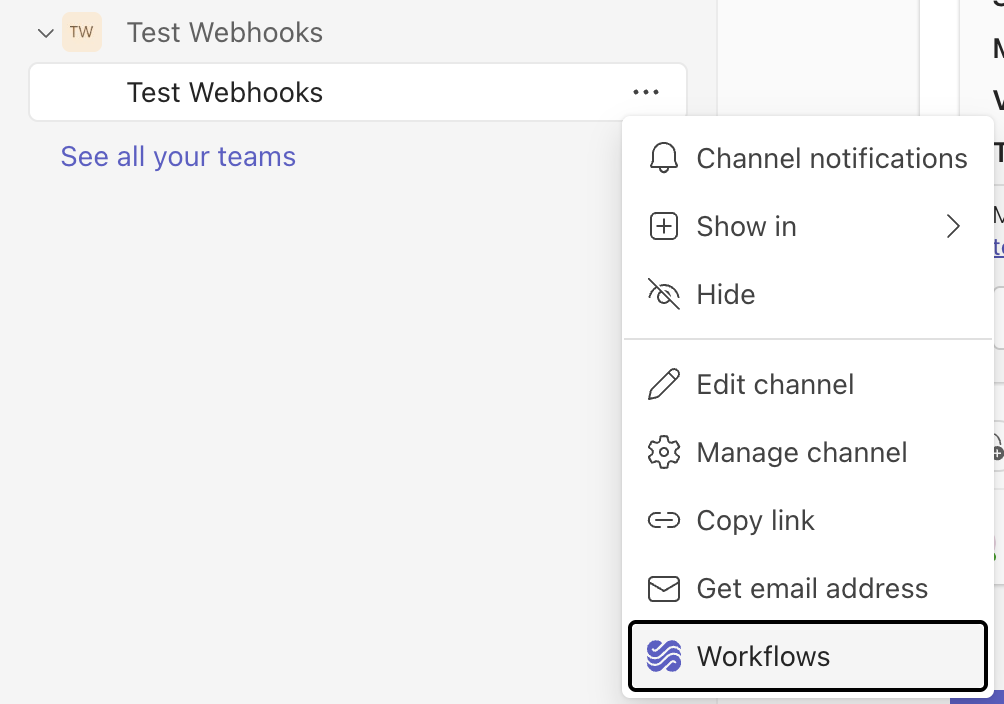 Select **Send webhook alerts to a channel**.
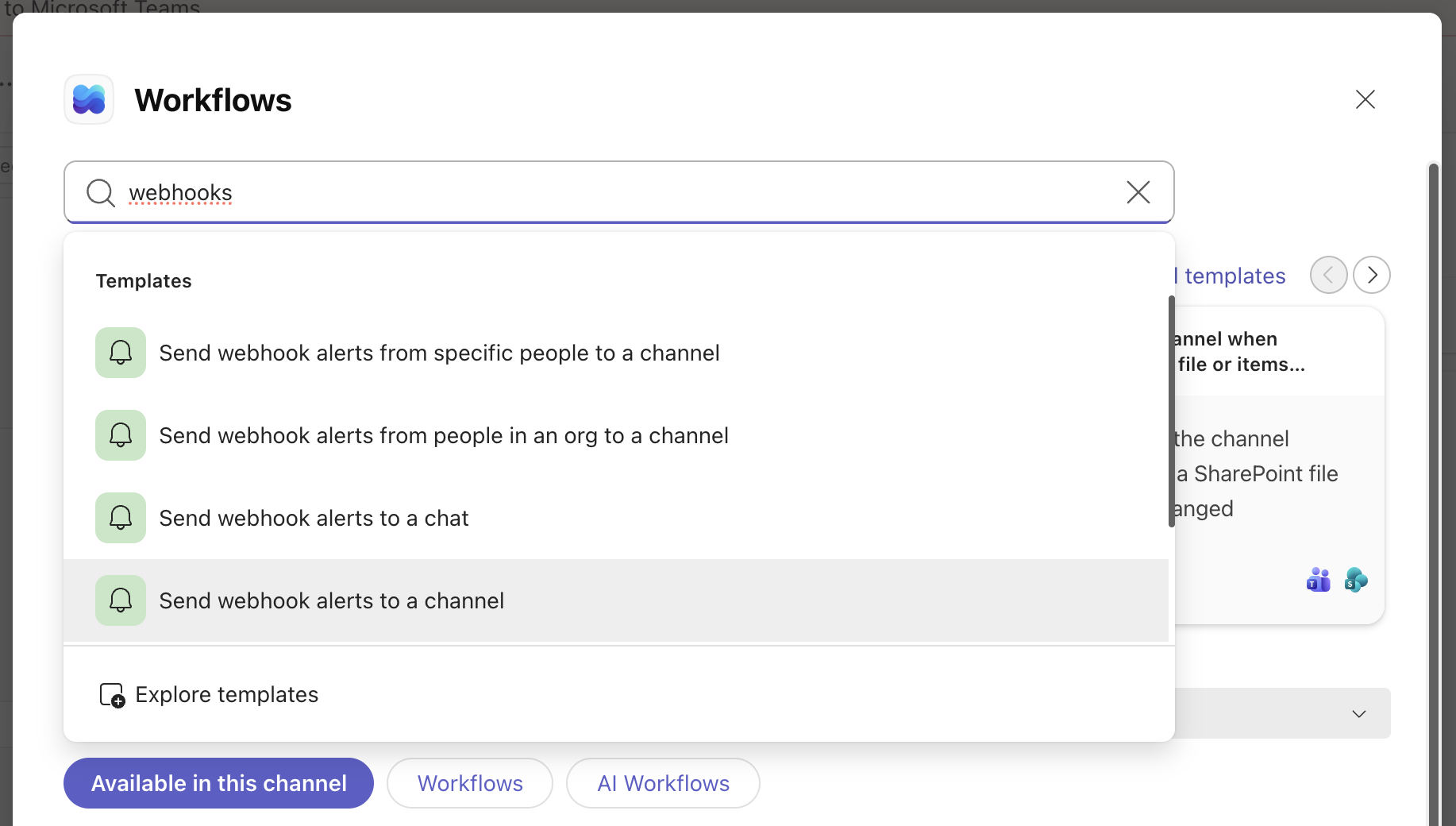 Choose the channel that should receive the alert.
 Copy the **webhook URL** — you'll need it when you create the webhook integration in Arize. Treat it like a password: anyone with the URL can post to the channel.
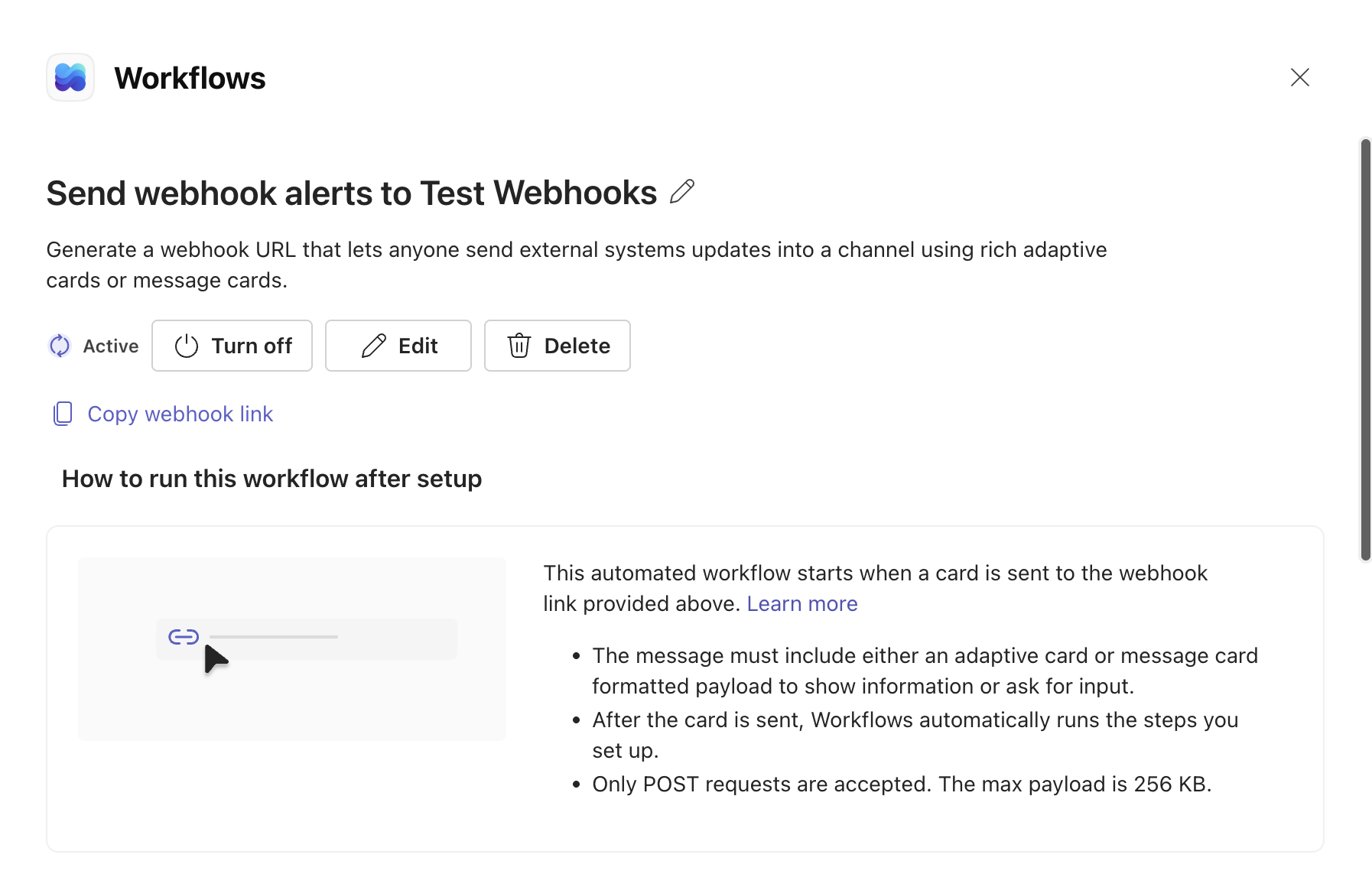 ### Integration Setup: Modify Workflow in Power Automate
The Teams Workflow expects an Adaptive Card, but Arize sends raw JSON. Edit the Workflow in Power Automate to build a custom alert card from the fields in Arize's webhook payload.
Go to [make.powerautomate.com](https://make.powerautomate.com/) and sign in with the same credentials you use for Teams.
Select **My flows**.
### Integration Setup: Modify Workflow in Power Automate
The Teams Workflow expects an Adaptive Card, but Arize sends raw JSON. Edit the Workflow in Power Automate to build a custom alert card from the fields in Arize's webhook payload.
Go to [make.powerautomate.com](https://make.powerautomate.com/) and sign in with the same credentials you use for Teams.
Select **My flows**.
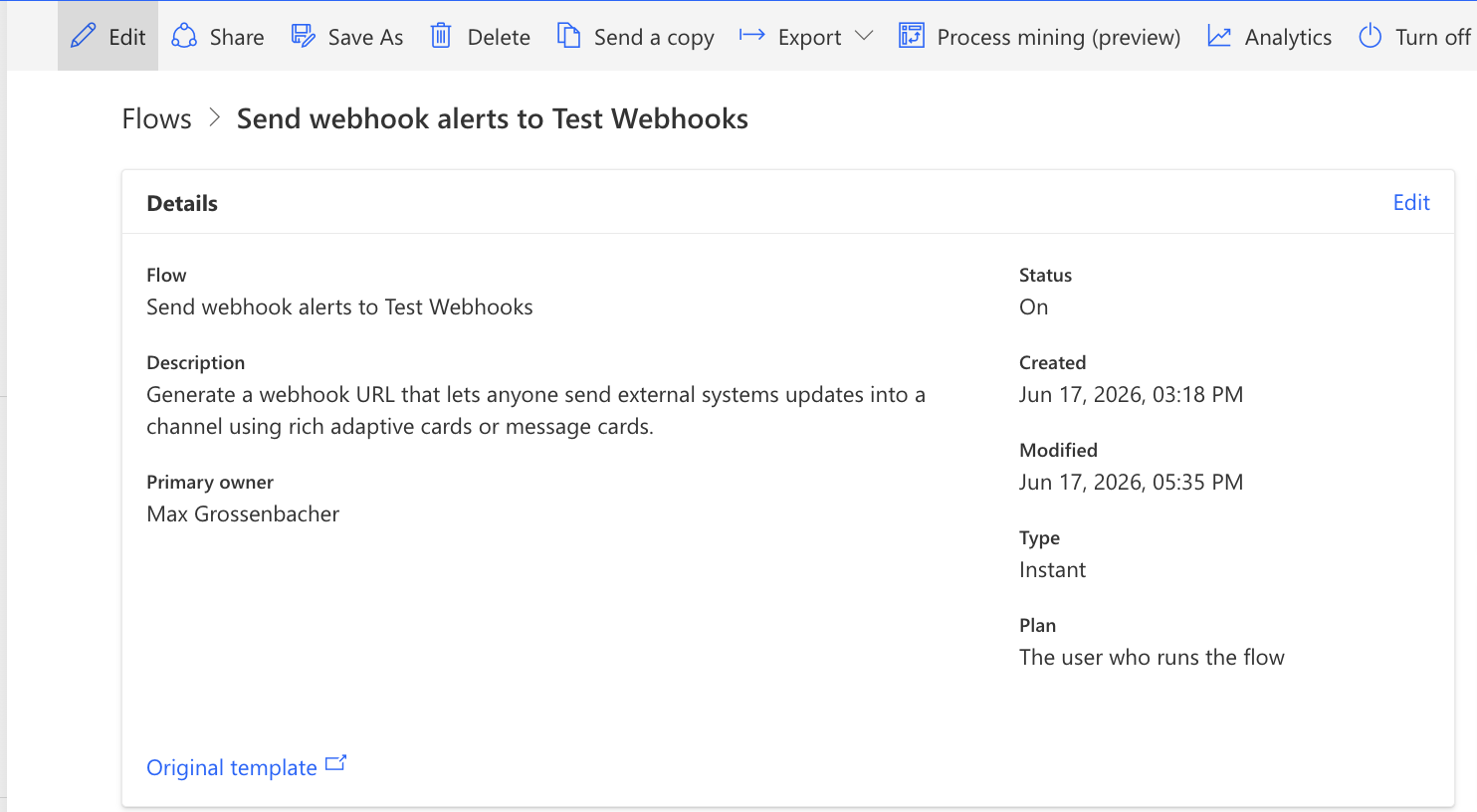
 Select your webhook workflow.
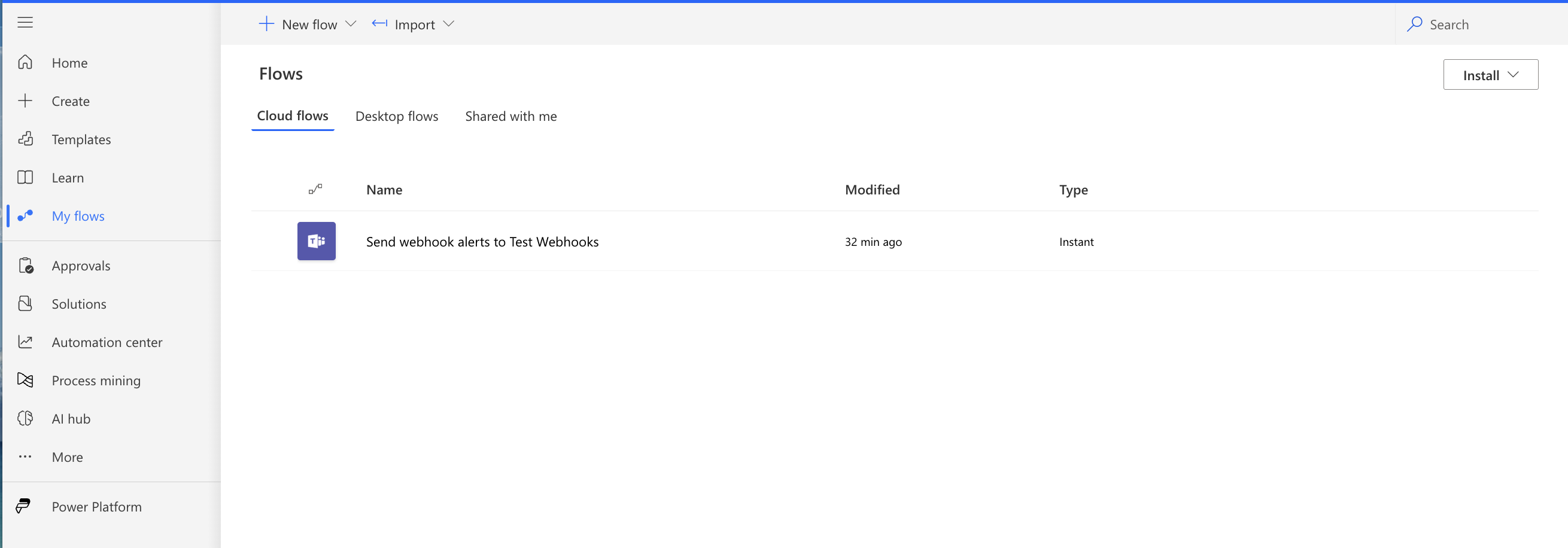 Select **Edit**.
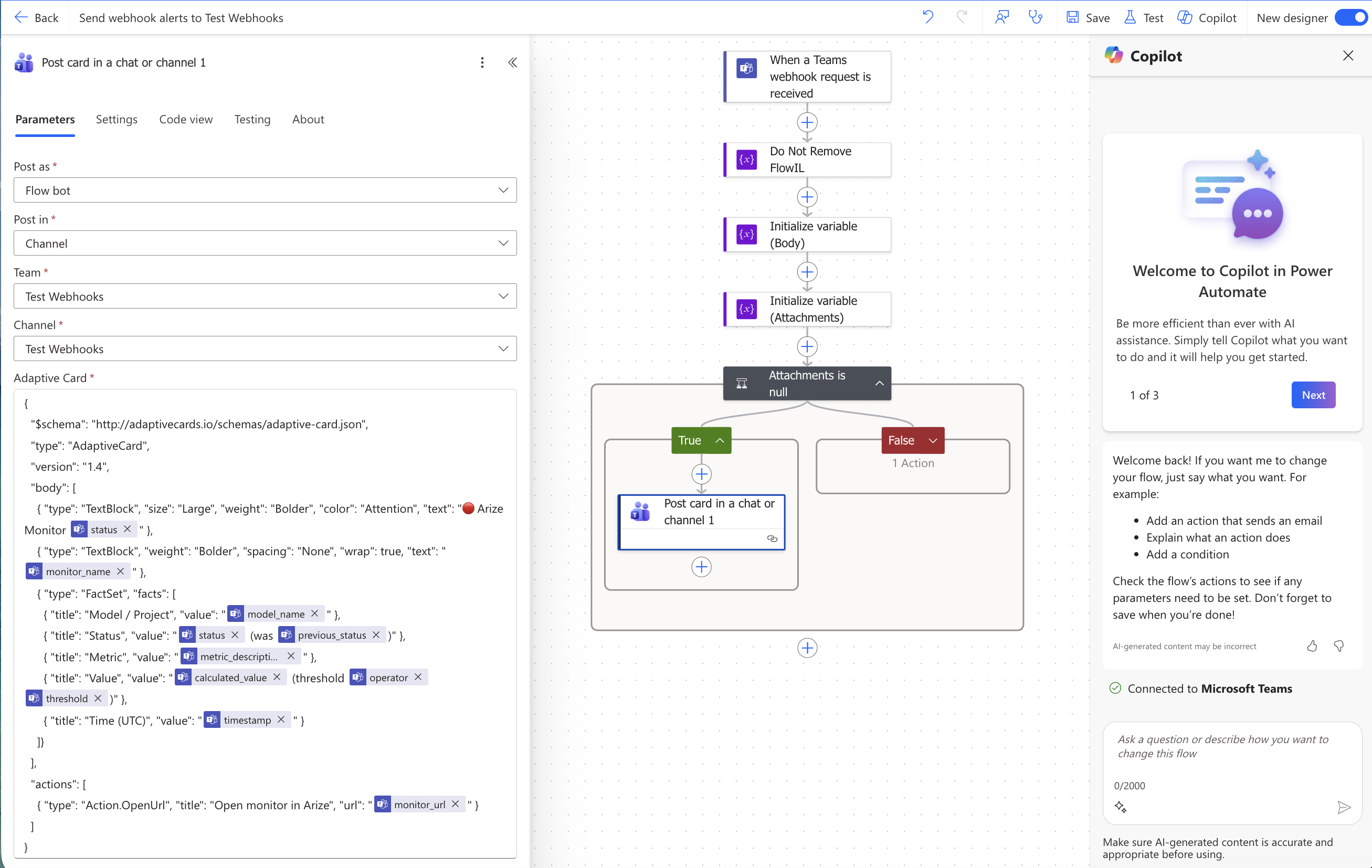
 Expand the actions, then open **Post card in a chat or channel**.
 In the **Adaptive Card** field, remove the existing string object and paste the JSON below:
```json theme={null}
{
"$schema": "http://adaptivecards.io/schemas/adaptive-card.json",
"type": "AdaptiveCard",
"version": "1.4",
"body": [
{ "type": "TextBlock", "size": "Large", "weight": "Bolder", "color": "Attention", "text": "🔴 Arize Monitor @{triggerBody()?['status']}" },
{ "type": "TextBlock", "weight": "Bolder", "spacing": "None", "wrap": true, "text": "@{triggerBody()?['monitor_name']}" },
{ "type": "FactSet", "facts": [
{ "title": "Model / Project", "value": "@{triggerBody()?['model_name']}" },
{ "title": "Status", "value": "@{triggerBody()?['status']} (was @{triggerBody()?['previous_status']})" },
{ "title": "Metric", "value": "@{triggerBody()?['metric_description']}" },
{ "title": "Value", "value": "@{triggerBody()?['calculated_value']} (threshold @{triggerBody()?['operator']} @{triggerBody()?['threshold']})" },
{ "title": "Time (UTC)", "value": "@{triggerBody()?['timestamp']}" }
]}
],
"actions": [
{ "type": "Action.OpenUrl", "title": "Open monitor in Arize", "url": "@{triggerBody()?['monitor_url']}" }
]
}
```
Select **Save**.
In the **Adaptive Card** field, remove the existing string object and paste the JSON below:
```json theme={null}
{
"$schema": "http://adaptivecards.io/schemas/adaptive-card.json",
"type": "AdaptiveCard",
"version": "1.4",
"body": [
{ "type": "TextBlock", "size": "Large", "weight": "Bolder", "color": "Attention", "text": "🔴 Arize Monitor @{triggerBody()?['status']}" },
{ "type": "TextBlock", "weight": "Bolder", "spacing": "None", "wrap": true, "text": "@{triggerBody()?['monitor_name']}" },
{ "type": "FactSet", "facts": [
{ "title": "Model / Project", "value": "@{triggerBody()?['model_name']}" },
{ "title": "Status", "value": "@{triggerBody()?['status']} (was @{triggerBody()?['previous_status']})" },
{ "title": "Metric", "value": "@{triggerBody()?['metric_description']}" },
{ "title": "Value", "value": "@{triggerBody()?['calculated_value']} (threshold @{triggerBody()?['operator']} @{triggerBody()?['threshold']})" },
{ "title": "Time (UTC)", "value": "@{triggerBody()?['timestamp']}" }
]}
],
"actions": [
{ "type": "Action.OpenUrl", "title": "Open monitor in Arize", "url": "@{triggerBody()?['monitor_url']}" }
]
}
```
Select **Save**.
 ### Integration Setup: Register Webhook in Arize
Register the Teams webhook URL in Arize as a webhook integration so it's available as an alert destination for your monitors.
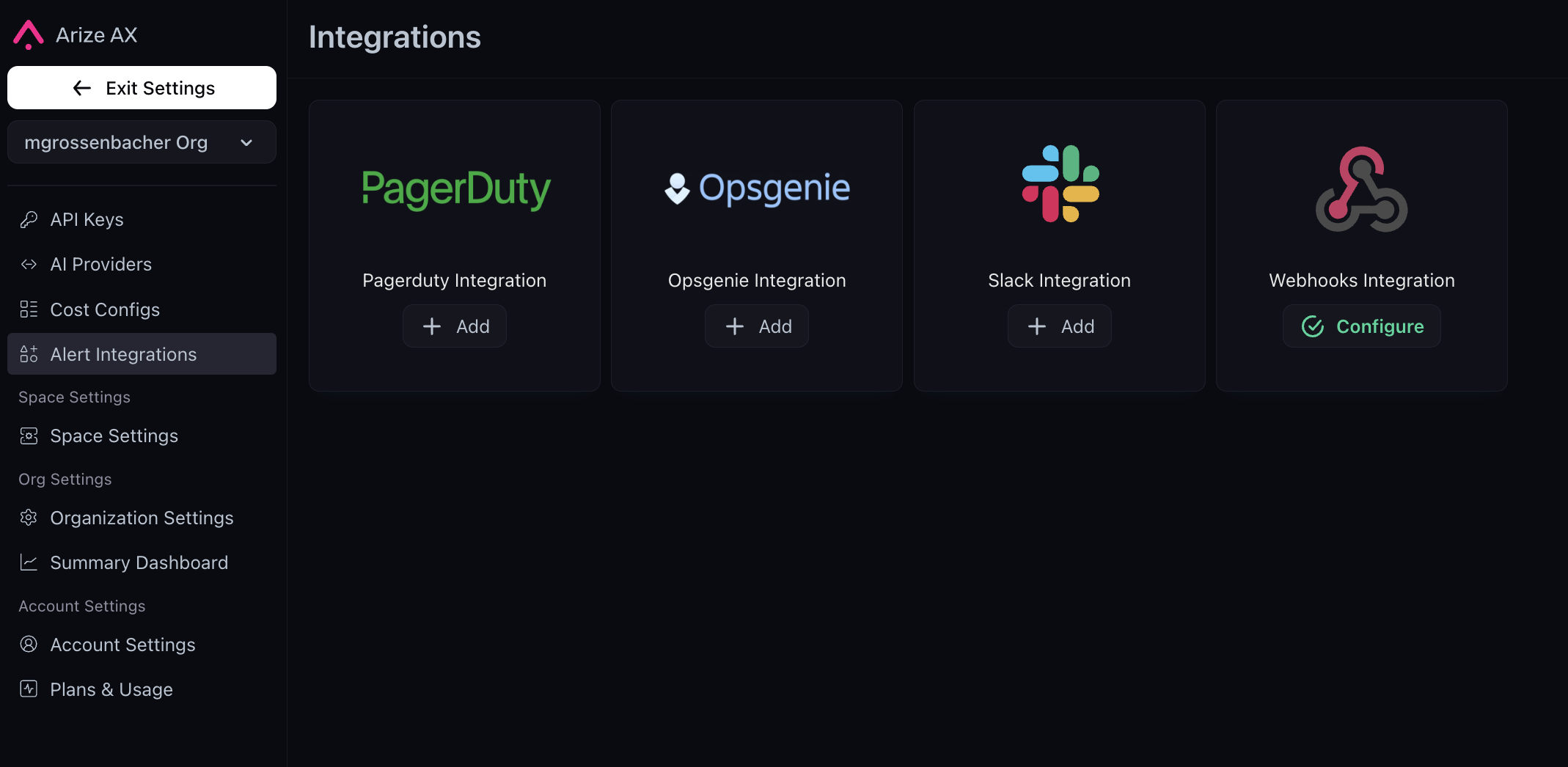
Go to **Settings → Alert Integrations → Webhook Integration**.
### Integration Setup: Register Webhook in Arize
Register the Teams webhook URL in Arize as a webhook integration so it's available as an alert destination for your monitors.
Go to **Settings → Alert Integrations → Webhook Integration**.
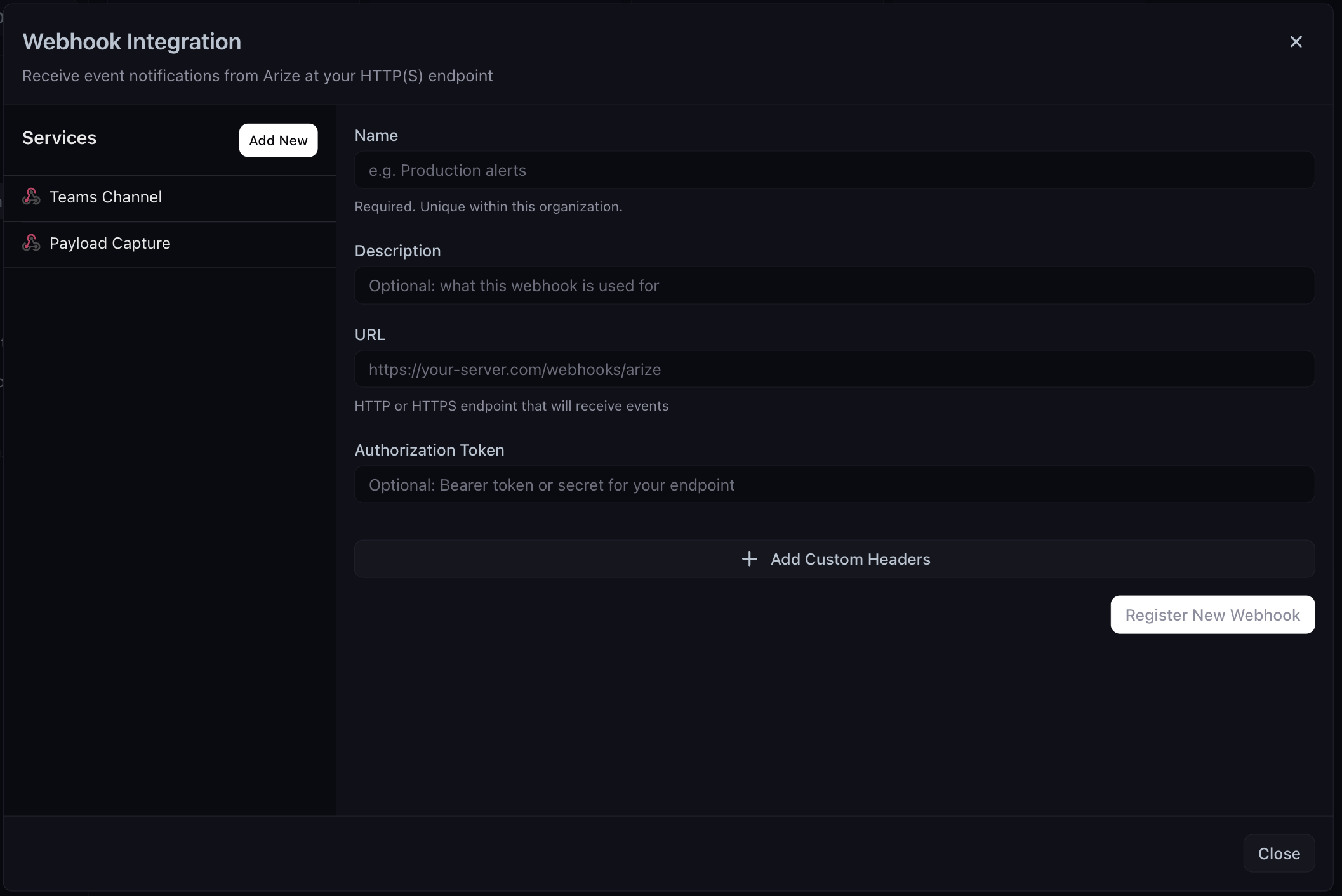
 Select **Add New**, name the integration (for example, `Teams Channel`), and paste the webhook URL from the Teams Workflow. Leave **Authorization Token** and **Custom Headers** empty, then select **Register New Webhook**.
 ## Send Alerts
Assign the Teams webhook to your alerts at either level:
* **Project level** -- from a project's **Config** tab, select the Teams webhook so every monitor in the project notifies Teams.
* **Per monitor** -- set it on an individual monitor, as below.
In your project, go to **Monitors → New Monitor → Create Custom Monitor**.
Configure the monitor, then set **Send Notifications to** your **Teams Channel** webhook and the alert event to **Triggered**. Select **Create**. To also be notified when a monitor recovers, subscribe the webhook to the **Cleared** (and optionally **No data**) events.
## Send Alerts
Assign the Teams webhook to your alerts at either level:
* **Project level** -- from a project's **Config** tab, select the Teams webhook so every monitor in the project notifies Teams.
* **Per monitor** -- set it on an individual monitor, as below.
In your project, go to **Monitors → New Monitor → Create Custom Monitor**.
Configure the monitor, then set **Send Notifications to** your **Teams Channel** webhook and the alert event to **Triggered**. Select **Create**. To also be notified when a monitor recovers, subscribe the webhook to the **Cleared** (and optionally **No data**) events.
 Within a few minutes, the alert triggers (if its conditions are met) and posts to the Teams channel.
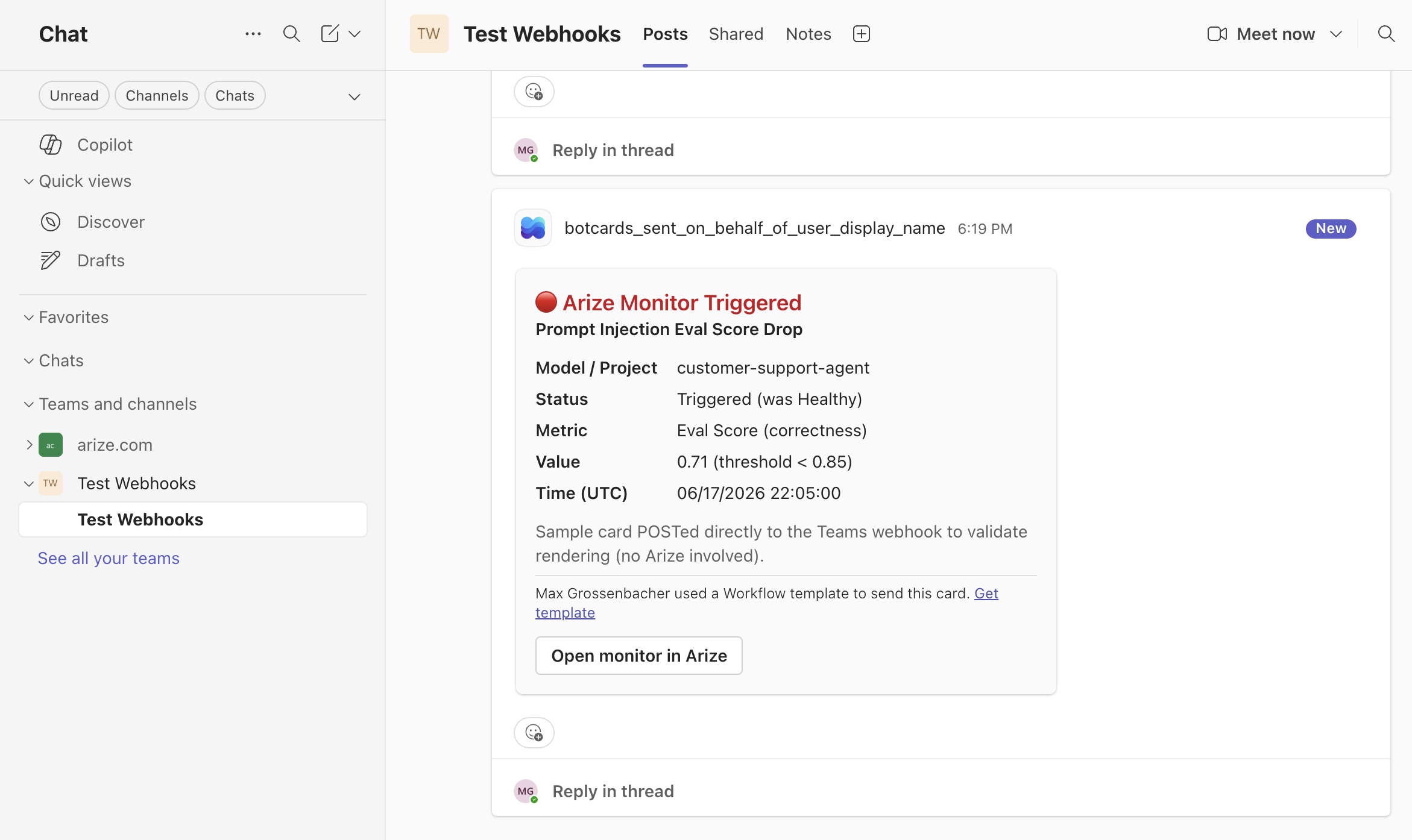 Alerts fire on a state change (Healthy → Triggered), not on every evaluation — a monitor won't re-alert while it stays triggered. To test again, let it clear and re-trigger.
## Troubleshooting
If no message appears in the channel:
* Confirm the workflow is turned **On** in Power Automate (or the Teams **Workflows** app).
* Confirm the **Adaptive Card** field contains valid JSON.
* Confirm the monitor actually transitioned to **Triggered** — alerts fire on a state change, not on every evaluation.
* Open the flow's **run history** at [make.powerautomate.com](https://make.powerautomate.com/) → your flow. A failed run shows the exact error (for example, an invalid Adaptive Card).
### Troubleshooting: Webhook Payload Reference
When a monitor changes state, Arize sends this JSON (`Content-Type: application/json`). The card maps its fields from these exact names — useful if you want to customize the alert card in Teams or debug a blank value:
```json theme={null}
{
"event": "monitor.triggered",
"event_uuid": "f6f4ca33-5b4d-4a79-b5ee-fd9bc1f2b094",
"space_id": "",
"account_organization_id": "",
"space_name": "Your Space",
"account_organization_name": "Your Org",
"timestamp": "2026-06-17T23:27:25.146494727Z",
"monitor_id": 664739,
"monitor_name": "Teams Webhook Trigger Test",
"model_name": "your-project",
"status": "Triggered",
"previous_status": "Healthy",
"monitor_url": "https://app.arize.com/organizations/.../spaces/.../monitors/...",
"threshold": 1,
"operator": ">",
"metric_description": "Count for attributes.llm.token_count.total",
"calculated_value": 30,
"calculated_at": "2026-06-17T23:00:00Z"
}
```
Having trouble? Email [support@arize.com](mailto:support@arize.com) or reach us in #arize-support on Slack.
Alerts fire on a state change (Healthy → Triggered), not on every evaluation — a monitor won't re-alert while it stays triggered. To test again, let it clear and re-trigger.
## Troubleshooting
If no message appears in the channel:
* Confirm the workflow is turned **On** in Power Automate (or the Teams **Workflows** app).
* Confirm the **Adaptive Card** field contains valid JSON.
* Confirm the monitor actually transitioned to **Triggered** — alerts fire on a state change, not on every evaluation.
* Open the flow's **run history** at [make.powerautomate.com](https://make.powerautomate.com/) → your flow. A failed run shows the exact error (for example, an invalid Adaptive Card).
### Troubleshooting: Webhook Payload Reference
When a monitor changes state, Arize sends this JSON (`Content-Type: application/json`). The card maps its fields from these exact names — useful if you want to customize the alert card in Teams or debug a blank value:
```json theme={null}
{
"event": "monitor.triggered",
"event_uuid": "f6f4ca33-5b4d-4a79-b5ee-fd9bc1f2b094",
"space_id": "",
"account_organization_id": "",
"space_name": "Your Space",
"account_organization_name": "Your Org",
"timestamp": "2026-06-17T23:27:25.146494727Z",
"monitor_id": 664739,
"monitor_name": "Teams Webhook Trigger Test",
"model_name": "your-project",
"status": "Triggered",
"previous_status": "Healthy",
"monitor_url": "https://app.arize.com/organizations/.../spaces/.../monitors/...",
"threshold": 1,
"operator": ">",
"metric_description": "Count for attributes.llm.token_count.total",
"calculated_value": 30,
"calculated_at": "2026-06-17T23:00:00Z"
}
```
Having trouble? Email [support@arize.com](mailto:support@arize.com) or reach us in #arize-support on Slack.