

Agent-Assisted Tracing Setup
The fastest way to add Arize AX tracing to your application. Paste a single URL into your coding agent and it handles everything — dependency installation, instrumentation, and configuration.Get Started — Paste this into your coding agent:
How it works
- Paste the URL into any coding agent (Claude Code, Cursor, Windsurf, Copilot, etc.)
- The agent analyzes your codebase — detects language, LLM providers, and frameworks
- The agent proposes an instrumentation plan based on your stack
- You approve, and the agent implements tracing with the right integrations
Supported stacks: Python, TypeScript/JavaScript, and Java — covering 30+ LLM providers, frameworks, and platforms. See the full integration list.
What the agent does
- Phase 1 (Analysis): Scans imports to detect your LLM provider and framework, then proposes an instrumentation plan. No code changes.
- Phase 2 (Implementation): Installs dependencies, creates a centralized instrumentation module, and configures OpenTelemetry to send traces to Arize AX.
Alternative: MCP Servers
For persistent documentation access in your IDE, Arize AX offers two MCP servers. These are useful when you want ongoing access to docs and support beyond the initial tracing setup.Arize AX Tracing Assistant
Best for: Instrumentation guidance and implementation supportInstallation →The Arize Tracing Assistant provides hands-on help with adding tracing to your applications:- Instrumentation Guides: Step-by-step guides for adding Arize AX tracing to your codebase
- Curated Examples: Framework-specific tracing examples and best practices
- Direct Support Access: Natural language queries to Arize support directly from your development environment
- Code Analysis: Analyzes your codebase to identify instrumentation needs and propose implementation plans
Arize AX Docs MCP Server
Best for: Comprehensive documentation access and referenceThe AX Docs MCP Server provides searchable access to the entire Arize AX documentation knowledge base:- Full Documentation Access: Search across all Arize AX documentation, guides, and references
- Code Examples: Find relevant code examples and implementation patterns
- API References: Access API documentation and endpoint details
- Feature Guides: Understand how features work and locate implementation details
Usage
Using the AX Tracing Assistant
Once the Tracing Assistant MCP server is running, you can ask your IDE or LLM natural-language questions like:- “Instrument this app using Arize AX”
- “Can you use manual instrumentation so that I have more control over my traces?”
- “How can I redact sensitive information from my spans?”
- “Can you make sure the context of this trace is propagated across these tool calls?”
Using the AX Docs MCP Server
Once the AX Docs MCP server is running, you can ask your IDE or LLM to search the documentation:- “How do I set up evaluation for my RAG application?”
- “Show me examples of tracing with LangChain”
- “What are the available evaluators in Arize AX?”
- “How do I configure offline evaluations?”
Installation
The Arize AX Tracing Assistant is distributed via uv, a fast Python package manager. The AX Docs MCP Server provides HTTP-based access to the Arize AX documentation knowledge base.Install uv (Required for Tracing Assistant only)
📦 View Tracing Assistant on PyPI
The Tracing Assistant requires uv. The Docs MCP Server does not require any installation.
- macOS
- Linux
- Windows
Claude Code Integration
- Tracing Assistant
- Docs MCP Server
You can add the Tracing Assistant directly from the command line:Alternatively, to add it via JSON:To verify the server was added correctly:
Gemini CLI Integration
- Tracing Assistant
- Docs MCP Server
Install using the Gemini CLI extension. (Gemini CLI homepage)
IDE Integration
- Tracing Assistant
- Docs MCP Server
Cursor IDE
-
Navigate to:
Settings→MCP - Click Add new global MCP server
-
Insert the following into your config JSON:
Claude Desktop
-
Open:
Settings→Developer→Edit Config -
Add the following config:
Manual MCP Config
Add this snippet to yourmcpServers config section:Share Docs with AI Tools
Copy any documentation page as markdown and paste it directly into ChatGPT, Claude, coding agents, or other AI tools for accurate, up-to-date context.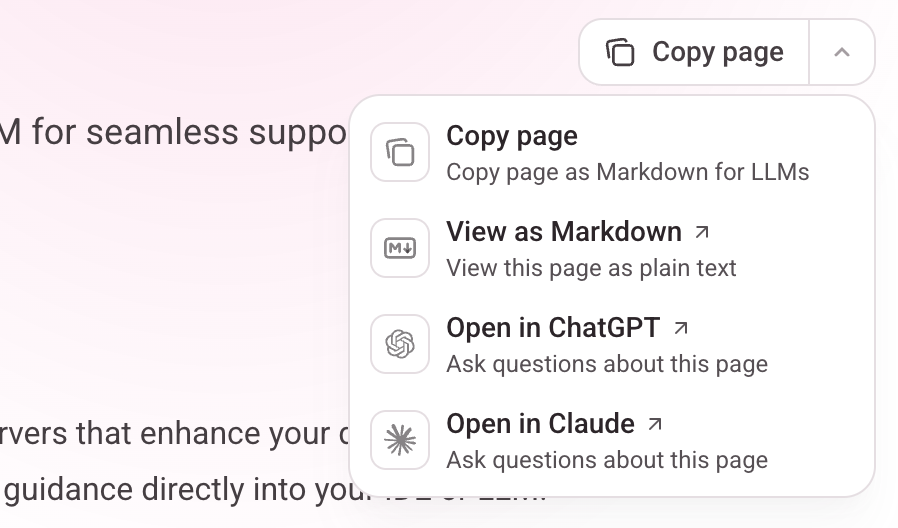
Validate Agent Plans with Ask AI
Use the Ask AI feature in these docs to validate implementation plans generated by your LLM or coding agent.- Generate a plan with your preferred agent (ChatGPT, Claude Code, Cursor, etc.)
- Copy the plan from your agent’s response
- Paste into Ask AI next to the search bar on these docs
- Ask for validation to check against Arize AX best practices