

Invite members
- From a space
- From an organization
- From the account
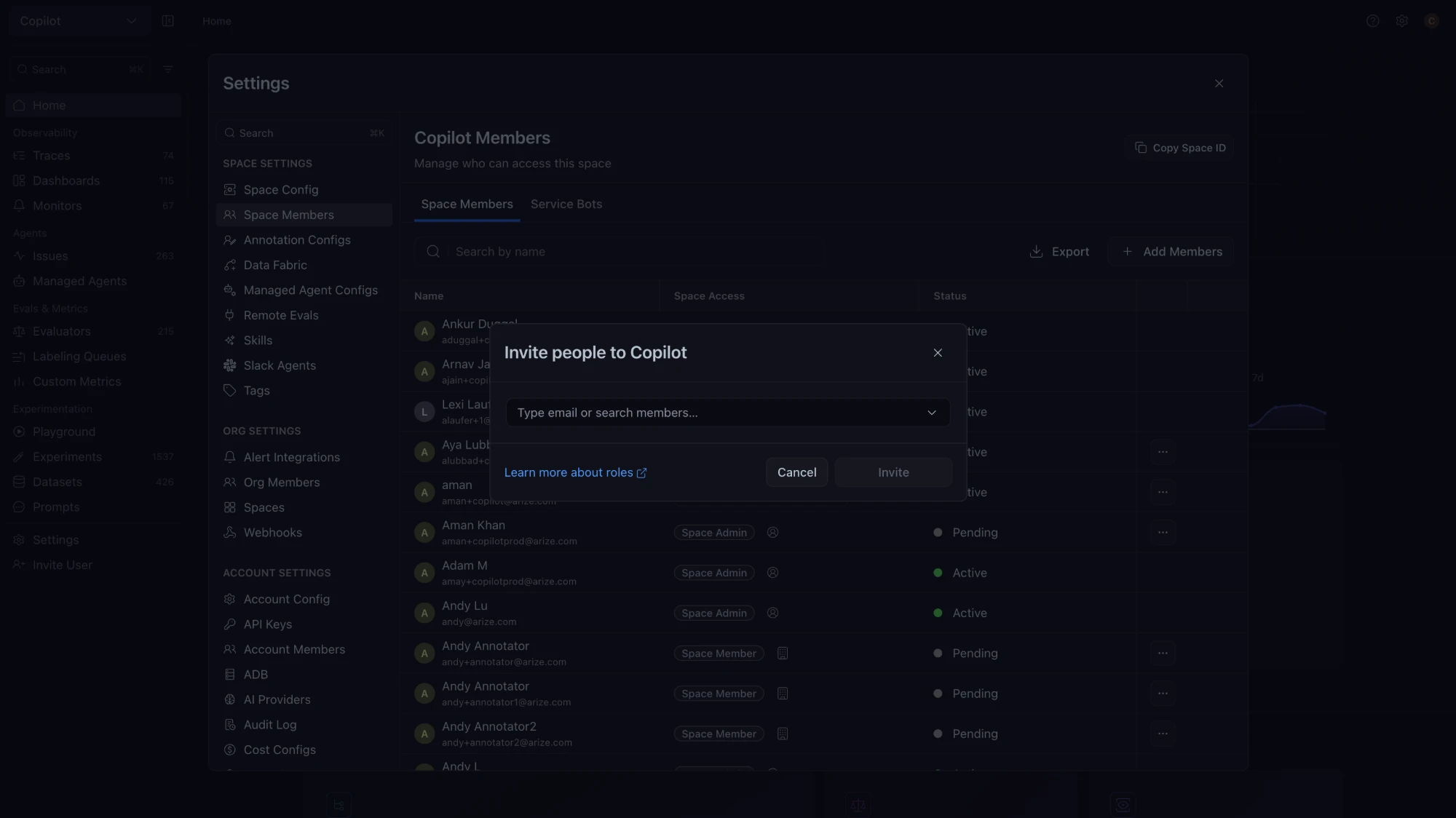
- Go to Settings → Space Settings → Space Members and click Add Members. Account Admins can also open this dialog from Invite User in the left navigation.
- Type or paste up to 50 email addresses, separated by spaces, commas, or semicolons, or search for existing members.
- Choose a space role for each person, managed or custom.
- Advanced settings appears on Enterprise, self-hosted, and locked-role accounts when an email is new to the account. It sets the Account role and Organization role.
- Click Invite.
Who can invite whom
An inviter can assign roles up to their own account role. The invite form hides roles above the inviter’s own.
The ceiling applies to the UI,
POST /v2/users, the CLI, and resending an invitation.
POST /v2/users in the RBAC REST API invites users programmatically. It accepts ADMIN, MEMBER, or ANNOTATOR, so it cannot create Member - UI Only users.
With SAML enforcement on, you cannot invite new email addresses, because your identity provider creates those users at first login. With Sync permissions on each login on, roles changed by hand are overwritten at the next login. A Domain Whitelist under Account Settings → Security limits invitations to approved domains.
Manage members
You can change a member’s role from the members table. Pending invitations can be resent or revoked. Removing a member from a space removes their access to that space. Removing a member from the account or an organization blocks their access to it. The Space Members page also has an export option, and service keys are listed on a separate Service Bots tab. See Service Keys.Troubleshoot invite errors
Troubleshoot invite errors
- The email address belongs to an active or inactive user, including one in another account.
- A
403means the role is above your own account role.